Assigning licenses to workloads
A management server distributes the allocated licenses between the workloads that are registered on this server.
The management server assigns a license to a workload when you apply a protection plan to the workload for the first time. If more than one license is allocated to the management server, it assigns the most appropriate license, depending on the type of the workload, the operating system, and the required level of protection.
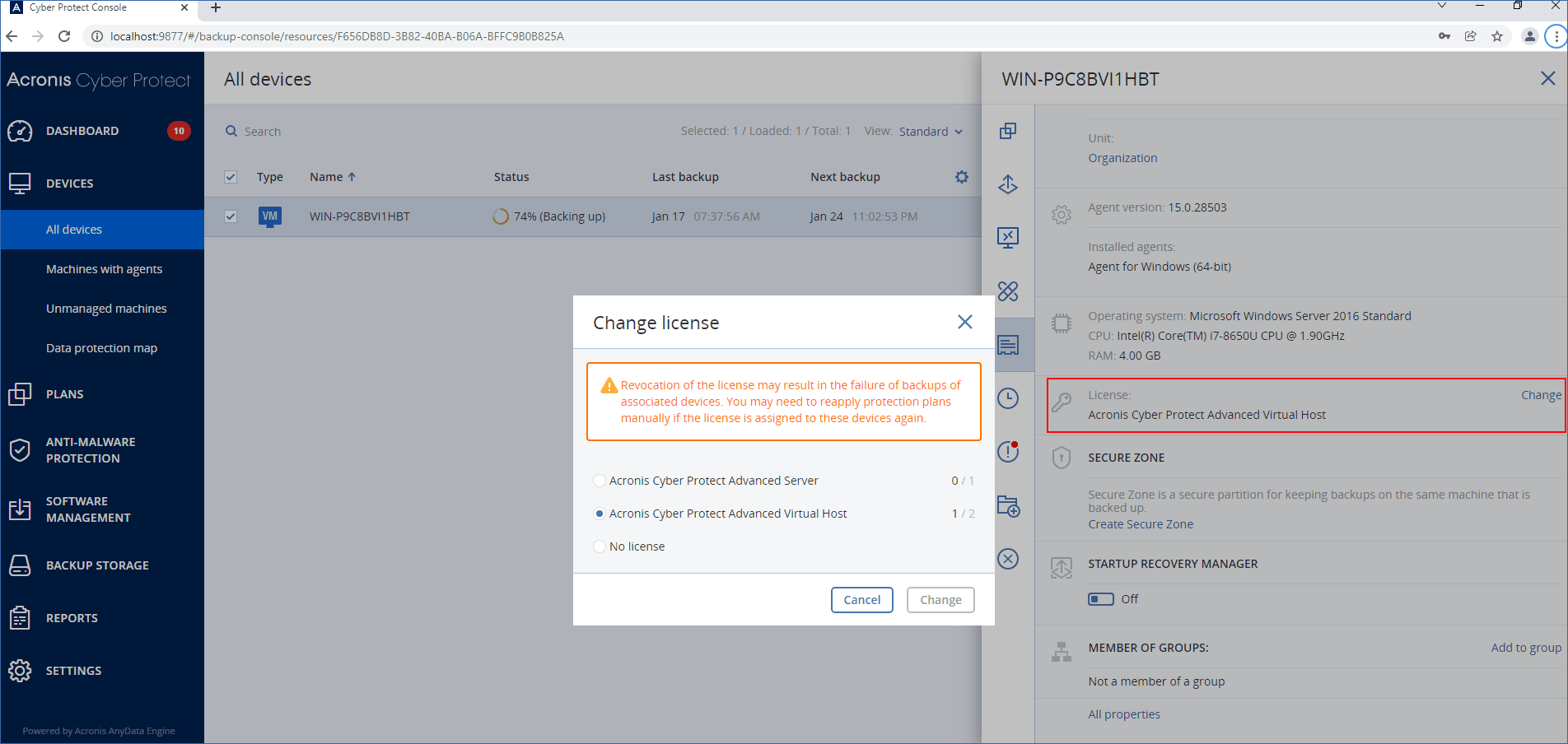
You can see the workload's license on the Details tab of the workload.
You can manually change an automatically assigned license. Manual operations with licenses are available only to organization administrators.
To change an automatically assigned license
- In the Cyber Protect console, click Devices, and then select the workload.
- Click Details.
- [For on-premises management servers] Go to the License section, and then click Change.
- [For cloud management servers] Go to the Service quota section, and then click Change.
-
Select the license (service quota) that you want to assign to the workload, and then click Change.
Limitations
- For offline management servers, current usage of the license quota is shown only in the local console. This happens because offline management servers do not sync this data with your Acronis account.
Known issues
- In the cloud console, the license usage or assignment of the Virtual Host license might be incorrectly shown. For more information, see this knowledge base article.